

Alt text for images helps people understand visual content when they cannot see it. It also gives search engines useful context about the image and the page. Therefore, strong alt text supports accessibility, clarity, and image SEO.
However, good alt text is not a list of keywords. Instead, it should match the image's purpose. An informative image needs a clear description. A decorative image may need an empty alt attribute. A linked image should explain the action or destination.
This guide gives you a simple process you can use on any website. You will learn how to classify images, write useful descriptions, fix common mistakes, and audit alt text in WordPress. In addition, you will see practical examples for products, charts, buttons, screenshots, and complex visuals.
Concise answer
What Is Alt Text for Images?
Alt text is a written replacement for an image's meaning or function. It sits inside the HTML alt attribute. Screen readers can announce it, browsers can show it when an image fails, and search engines can use it as context.
In short, good alt text answers one question: what does a person need to know or do when the image is not available? Therefore, the best wording depends on the image, its location, and its job on the page.
Why Alt Text for Images Matters
Images can show a product, explain a task, present data, or guide a user. Yet some visitors cannot see those images. Others may lose access because the file does not load. For this reason, the page needs a useful text alternative.
Alt text supports accessible content
People who are blind or have low vision may use a screen reader. The software can announce the alt text for an image. As a result, the visitor can understand information that would otherwise be visual only.
The goal is equal purpose, not a word-by-word picture report. For example, a search icon should communicate “Search.” It does not need to say “black magnifying glass.” Likewise, a chart should explain its main trend rather than list the colour of each bar.
The W3C guide to non-text content explains this principle in more detail. It also says decorative content should be hidden from assistive technology when possible.
Alt text gives search engines context
Search engines do not rely on one signal. Instead, they study the image, filename, nearby text, caption, page topic, and links. The alt attribute adds another clear clue.
Google's image SEO guidance recommends useful and descriptive alt text. However, it also warns against keyword stuffing. Therefore, your wording should be accurate before it is promotional.
For example, “Women's brown leather biker jacket with zip cuffs” gives useful product detail. On the other hand, “best leather jacket cheap jacket online jacket sale” does not describe the image well.
Alt text protects meaning when images fail
An image may fail because of a broken link, slow network, blocked file, or server problem. When that happens, useful alt text can still explain the missing visual. Therefore, the visitor does not face an empty area with no meaning.
In addition, keep the image width and height in your HTML. Those values reserve space while the file loads. As a result, the page remains more stable.
Alt text improves image-based actions
Some images act as links or buttons. In that case, the text should explain the result. For example, a cart icon may need “View shopping cart.” A download icon may need “Download the SEO checklist.”
This wording helps users understand the control. It may also give search engines better link context. Therefore, action-based text is more useful than a description of the icon's shape.
The Context Rule
The same photo can need different alt text on different pages. For example, a laptop image on a product page may need its model and colour. However, the same image in a remote-work article may need to describe the work activity. Context decides what matters.
Alt Text, Captions, Titles, and Filenames
These fields are related, but they do different jobs. Therefore, you should not copy the same wording into every field.
| Element | Main job | Usually visible? | Best use |
|---|---|---|---|
| Alt text | Replaces the image's meaning or function | No | Write for the image's purpose on this page |
| Caption | Adds explanation, credit, or context | Yes | Use when all readers need extra information |
| Filename | Names the media file | Usually no | Use short words separated with hyphens |
| Title attribute | May show extra information in some tools | Sometimes | Do not use it instead of alt text |
| Figcaption | Adds visible text to a figure | Yes | Avoid repeating the alt text word for word |
Why repeated text causes problems
A caption may name a location or explain why a photo matters. Meanwhile, alt text may describe the key visual detail. If both use the same sentence, a screen-reader user may hear it twice.
Therefore, read the heading, paragraph, alt text, and caption together. Remove repeated wording unless the repeat has a clear purpose.
Choose the Right Alt Treatment for Each Image
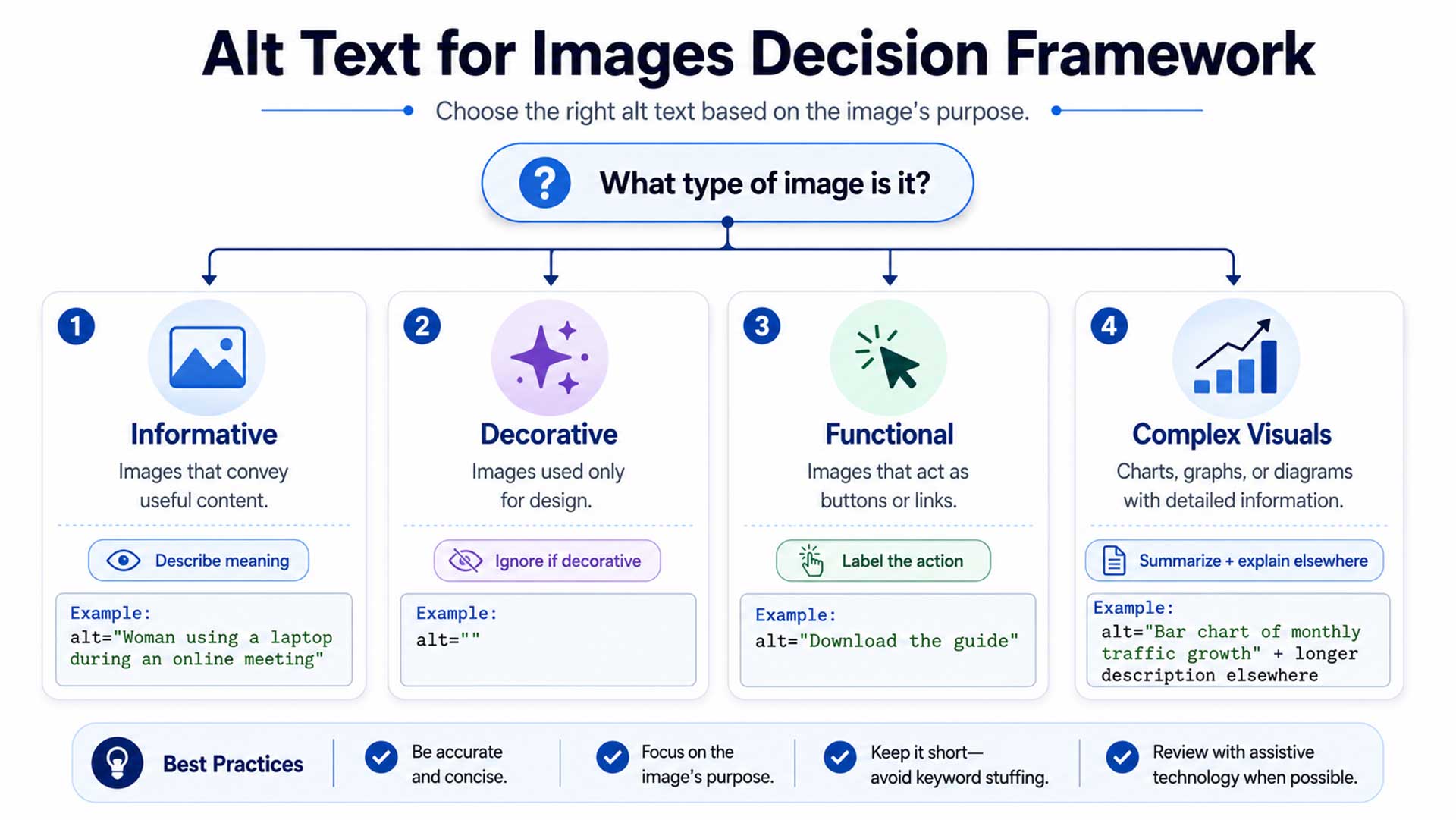
First, do not ask which keyword you can add. Instead, ask what job the image performs. That answer decides the correct treatment.
The W3C alt decision tree offers an official process. The table below turns that process into a quick publishing guide.
| Image type | What it does | Recommended treatment | Example |
|---|---|---|---|
| Informative | Adds useful information | Describe the key meaning | alt="Support dashboard showing 94% ticket resolution" |
| Decorative | Adds style but no meaning | Use an empty alt attribute | alt="" |
| Functional | Acts as a link or control | Name the action or destination | alt="Download the SEO audit" |
| Complex | Shows detailed data or links | Add a short summary and full text nearby | alt="Traffic rose each quarter; data follows" |
| Text in an image | Shows words not found elsewhere | Include the essential message | alt="Free SEO consultation for small businesses" |
| Redundant | Repeats nearby content | Often use an empty alt attribute | alt="" |
Informative images
Informative images add content that is not fully available in the text. For example, product photos show design details. Tutorial screenshots show where a setting appears. Team photos may identify a speaker or event.
Therefore, describe the detail the reader needs. For a screenshot, name the screen and the highlighted control. For a product, name visible features that help the buyer compare options.
Decorative images
Decorative images add style but no useful meaning. Examples include waves, patterns, dividers, and repeated flourishes. Because these images do not add content, a screen reader should usually skip them.
Use a truly empty value with no space:
<img src="decorative-shape.svg" alt="">However, do not remove the attribute. A missing attribute may cause some tools to read the filename. An empty attribute gives a clear instruction to ignore the image.
Functional images
Functional images help a user take an action. Therefore, name the result instead of the visual shape. Use “Print this article,” “Open the menu,” or “View your account.” Avoid labels such as “printer,” “three lines,” or “person icon.”
Complex images
Charts, maps, diagrams, and infographics often hold too much detail for one short attribute. First, use alt text to name the visual and state its main point. Next, provide the full data or explanation in nearby HTML.
For example, a chart may use “Organic traffic grew each quarter; full figures follow.” Then place the values in a table below it. This method is easier to read, copy, translate, and check.
Use the PACT Method to Write Better Alt Text
A good description becomes easier when you check four points. These points are purpose, audience, context, and trimming. Together, they form the PACT method.
Purpose
Ask why the image appears and what task it performs.
Audience
Think about what a person needs when the image is not visible.
Context
Read the heading, caption, and nearby text before you write.
Trim and test
Remove extra detail and read the final line aloud.
How to Write Alt Text for Images Step by Step
Read the page section first
First, read the heading and nearby text. Do not write from a small Media Library thumbnail alone. The page tells you which details matter.
Classify the image
Next, decide whether the image is informative, decorative, functional, complex, or repeated. This step tells you whether to write a description or use
alt="".Lead with the main meaning
Then state the most useful fact first. For example, “Quarterly traffic rose from 18,000 to 31,000 visits” is stronger than “blue graph with dots.”
Add only useful details
Colour, material, location, and angle can matter. However, add them only when they help the user understand or compare the image.
Use keywords naturally
A keyphrase may appear when it accurately names the visual. For example, “image SEO audit dashboard” may be suitable for that exact screenshot. Still, unrelated services or locations do not belong there.
Remove needless opening words
Phrases such as “image of” are often not needed. Assistive technology already identifies the element as an image. However, the medium may matter for a historical photo, map, or hand-drawn plan.
Check for repeated wording
After that, read the heading, paragraph, alt text, and caption as one sequence. Shorten the alt text when the same idea appears twice.
Test without the image
Finally, hide the visual or use a screen reader. Ask whether the page still makes sense and whether every action is clear.
Expert Tip: Do Not Chase One Character Limit
Alt text should be brief, but one fixed limit does not fit every image. For example, a simple icon may need one word. A product photo may need a short phrase. A chart may need a summary plus a data table.
Therefore, use the shortest wording that keeps the meaning. If the explanation becomes long, move the detail into the page content.
Practical Alt Text Examples by Use Case
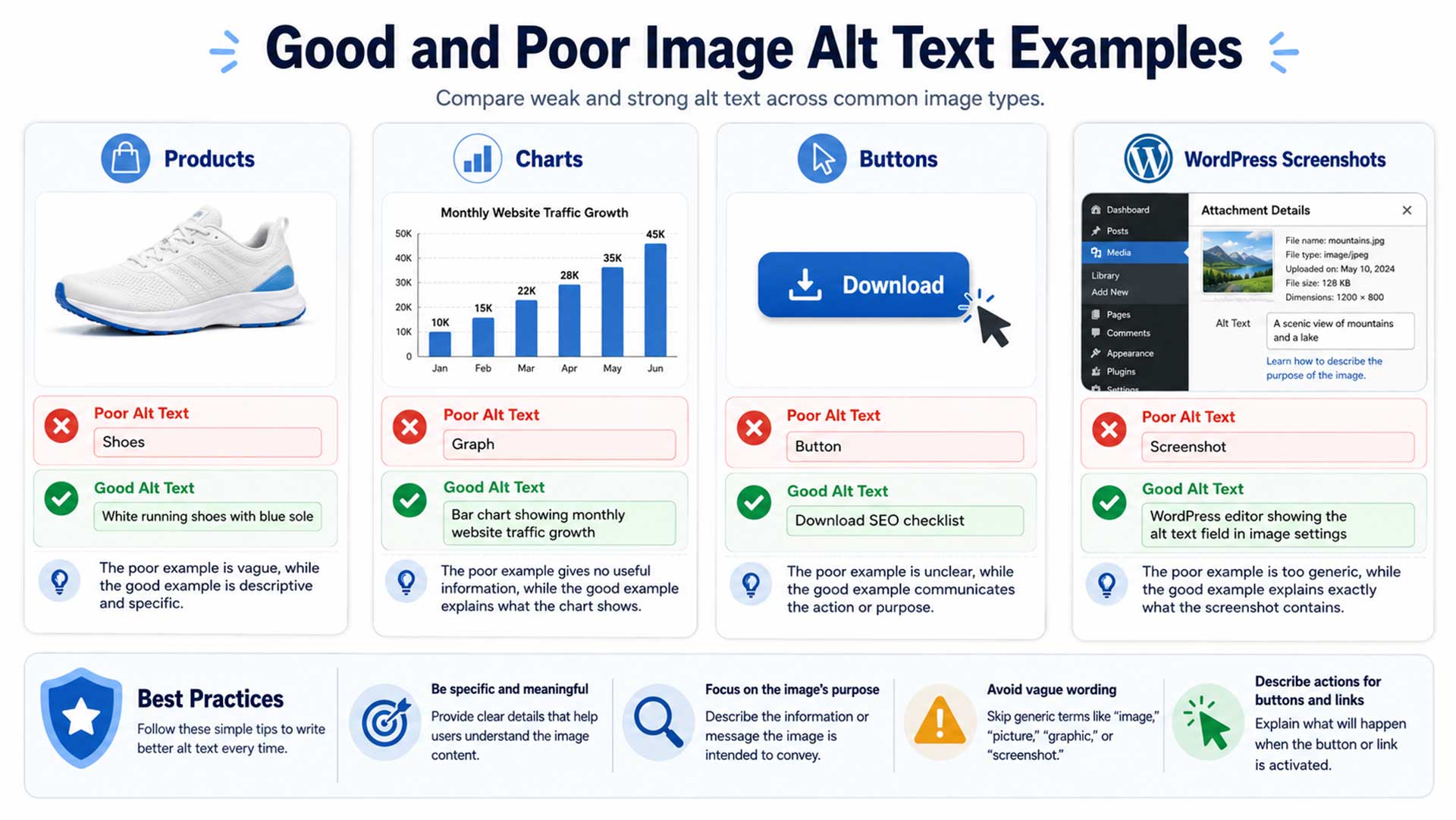
Small wording changes can make a large difference. The examples below show how a vague label can become a useful description.
| Use case | Weak version | Improved version | Why it works |
|---|---|---|---|
| Product | alt="Jacket" | alt="Men's brown leather biker jacket with zip chest pockets" | Shows the item and visible features |
| Restaurant | alt="Food image" | alt="Grilled salmon with asparagus and lemon butter" | Names the dish |
| Property | alt="Living room" | alt="Open living room with full-height windows and harbour view" | Adds useful property details |
| Tutorial | alt="Settings" | alt="WordPress image settings with the Alternative Text field highlighted" | Shows the screen and control |
| Image link | alt="Arrow" | alt="Read the technical SEO guide" | Names the destination |
| Chart | alt="Sales graph" | alt="Quarterly sales increased in 2026; full figures follow" | States the main result |
| Decoration | alt="Blue curved divider" | alt="" | Avoids needless audio |
| Search button | alt="Magnifying glass" | alt="Search" | Names the action |
Ecommerce product galleries
Product galleries should help shoppers tell one view from another. Therefore, do not repeat the same text for every photo.
- Black leather biker jacket, front view
- Back view with quilted shoulder panels
- Close-up of the silver zipper and snap collar
- Interior lining with a zipped pocket
- Model wearing the jacket with zipped sleeves
Also, include only facts that the image proves. Do not add “waterproof,” “genuine leather,” or “free delivery” unless the visual shows that message.
People and team photos
Name a person when the name is known, useful, and safe to publish. Otherwise, describe the role or action. For example, use “Speaker presenting an SEO report to a workshop.”
However, do not guess age, background, health, feelings, or relationships from appearance. Accuracy matters more than detail.
Logos and linked logos
A logo that only shows the brand may use the company name:
<img src="digital-mind-metrics-logo.svg" alt="Digital Mind Metrics">A logo that links to the home page may name the destination:
<a href="/">
  <img src="digital-mind-metrics-logo.svg" alt="Digital Mind Metrics home">
</a>
Charts and data visuals
First, identify the chart and its main result. Next, place the numbers in a table or clear paragraph. This approach helps users move through the data at their own pace.
By contrast, one long alt attribute is hard to scan and hard to copy. Therefore, keep the attribute short and move the full detail into HTML.
Images that contain text
Use live HTML text whenever possible. Real text can be resized, selected, searched, and translated. It is also easier to update.
However, some graphics must contain text. In that case, include the key message if it does not appear nearby. If the same message sits beside the image, use empty alt text when the image adds no other meaning.
Reviews and testimonial screenshots
A review screenshot can hide important words inside pixels. Therefore, copy the approved review into real HTML. Then use the screenshot as a supporting or decorative visual.
Common Alt Text Mistakes to Avoid
Using the filename
IMG_9482-final.jpg does not explain the visual. Instead, write a natural description.
Repeating keywords
A keyword list sounds unnatural and gives little value. Therefore, describe the image first.
Describing every decoration
Extra labels slow down screen-reader use. Use alt="" when the image adds no meaning.
Leaving controls unclear
Icon buttons need a clear action or destination. For example, use “Open search.”
Repeating the caption
Identical text may play twice. Instead, let the caption and alt text do separate jobs.
Adding facts that are not visible
Do not add claims, materials, or feelings that the image does not prove.
Using one line everywhere
The same image may serve a new purpose on another page. Therefore, review each use.
Chasing a plugin score
A green score cannot judge meaning. Human review is still needed.
How to Add Alt Text in WordPress
WordPress includes an Alternative Text field in the block editor and Media Library. However, the best description depends on the page where the image appears.
Use this seven-step WordPress process
- Open the post, page, product, or reusable block.
- Select the image you want to review.
- Open the image settings in the sidebar.
- Find the Alternative Text field.
- Read the nearby heading and paragraph.
- Add useful text or leave it empty for decoration.
- Update the page and check the live output.
Check the final HTML
Themes, sliders, and page builders may handle image data in different ways. Therefore, inspect the live page. Confirm that the final <img> tag contains the value you entered.
An informative image may look like this:
<img
  src="/wp-content/uploads/seo-dashboard.jpg"
  alt="SEO dashboard showing organic clicks and qualified leads"
  loading="lazy"
  decoding="async"
  width="1200"
  height="675"
>
A decorative image should keep an empty attribute:
<img
  src="/wp-content/uploads/decorative-grid.svg"
  alt=""
  loading="lazy"
  width="1200"
  height="200"
>
Use AIOSEO as a guide
AIOSEO can find missing fields and support a steady workflow. Still, a green result does not prove that the description is accurate or accessible. Therefore, use the plugin as quality control, not as the final judge.
You can also explore the Digital Mind Metrics SEO resource library to connect image work with search intent, page speed, internal links, and content quality.
How to Audit Alt Text Across a Website
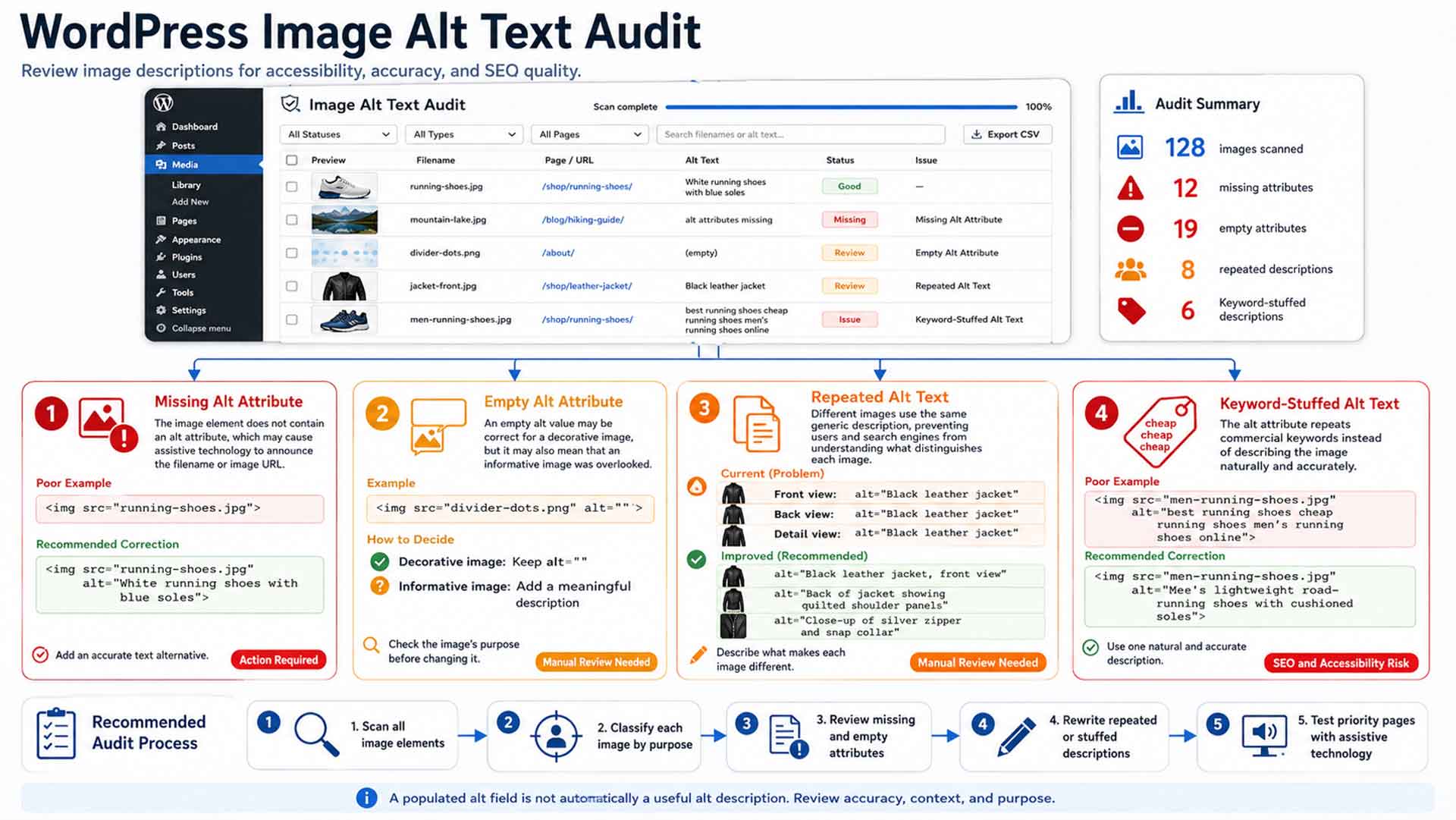
A crawler can find missing and repeated attributes. However, it cannot fully judge the image's purpose. Therefore, a strong audit combines tool data with a human page review.
1. Build an image list
First, collect the page URL, image URL, alt value, status code, file size, and page type. Start with indexed pages, product pages, service pages, popular posts, and key landing pages.
2. Separate missing, empty, and filled values
A missing attribute is a code issue. By contrast, an empty value may be correct for a decorative image. A filled value may still be vague or stuffed with keywords.
3. Classify each image
Next, review the image on the live page. Mark it as informative, functional, decorative, complex, repeated, or text-based. Do not decide from the filename alone.
4. Fix the highest-value pages first
Start with images that support sales, leads, software steps, or important data. These images usually affect users more than old decorative files in an archive.
5. Review charts and diagrams
Then check whether each complex visual has a text version nearby. The audit should find missing data and missing explanations, not only short attributes.
6. Test key templates
After that, test posts, product pages, galleries, search pages, menus, pop-ups, and forms. Use both a keyboard and a screen reader when possible.
7. Check the mobile version
Responsive layouts may swap images or remove visible labels. Therefore, confirm that mobile controls and visuals still have clear names.
8. Create an editorial rulebook
Finally, write a short guide for writers, designers, and developers. Include image types, examples, owners, and review steps. As a result, the same problems are less likely to return.
Can AI Generate Good Alt Text?
AI can save time when a site has many images. For example, it can identify objects, read visible words, and suggest a short draft.
However, an image alone does not reveal the full page purpose. AI may not know which product feature matters. It may also miss nearby text or the action behind an icon.
In addition, AI can invent colours, materials, names, feelings, or data trends. Therefore, a person should review every important description before it goes live.
Use a clear AI prompt
Write one concise alt-text option for this image.

Page context: A product page for premium leather jackets.
Image purpose: Show the front design and visible hardware.
Include: Product type, colour, and visible features.
Exclude: Sales claims, shipping details, and facts not shown.
Do not begin with "image of" or repeat keywords.
Run a human approval check
- Does the text match the correct image?
- Does it fit the page's purpose?
- Are all product or data details correct?
- Does it avoid guesses about people?
- Does it repeat nearby copy?
- Should the image use
alt=""instead? - Does the line make sense when read aloud?
For more help with safe automation, read the Digital Mind Metrics guide to AI SEO tools. It explains why human checks still matter.
Expert Insights From Real Alt Text Reviews
Missing attributes are easy to find. Yet the deeper problems often come from weak rules and poor page context. The issues below appear often during reviews.
Generic text is reused across the site
A team may save one line in the Media Library and reuse it everywhere. However, the same image can have a new purpose on another page. Therefore, each important use needs a quick review.
Product galleries repeat one label
Repeated labels do not explain front, back, side, or detail views. As a result, shoppers may miss useful product information.
Design systems create audio clutter
Page builders may add arrows, patterns, and icons as normal images. If each one gets a description, screen-reader users hear needless detail. Therefore, decorative assets should be handled on purpose.
Charts are named but not explained
“Marketing chart” fills the field, but it does not share the result. Instead, state the main trend and add the figures below the image.
SEO phrases replace accurate wording
Some teams place service and location terms in every image. However, those words may not match the visual. Accurate text creates more value than forced phrases.
No one owns the final check
Writers may expect developers to handle alt text. Meanwhile, developers may expect editors to do it. A simple owner and review step can solve this gap.
Also, review the Digital Mind Metrics content strategy guide to connect useful content with search visibility and qualified leads.
Pre-Publication Alt Text Checklist
- The image has been classified by purpose.
- Informative images explain the needed meaning.
- Functional images name the action or destination.
- Decorative images use a true
alt=""value. - Complex visuals include clear supporting text or data.
- The description matches the nearby content.
- The most useful detail appears first.
- Needless phrases such as “image of” are removed.
- Keywords appear only when they fit the visual.
- The wording does not repeat the caption without a reason.
- No fact, feeling, identity, or material has been guessed.
- Gallery images have different, useful descriptions.
- Image links and icon buttons have clear names.
- Mobile and desktop versions give the same key meaning.
- The live HTML contains the intended alt attribute.
- A person reviewed the result, not only an SEO plugin.
Frequently Asked Questions About Alt Text
What is alt text for images?
Alt text is a short written alternative that explains an image's meaning or purpose. It normally appears inside the HTML alt attribute.
Does every image need alt text?
Every HTML image should normally include an alt attribute. However, a decorative image should usually use alt="" so assistive technology can skip it.
How long should image alt text be?
Keep it as short as possible while preserving the needed meaning. If the image contains complex data, explain the detail in nearby page content.
Does alt text improve SEO?
Alt text can help search engines understand an image and its link to the page topic. However, it is only one part of image SEO and does not guarantee rankings.
Should alt text include keywords?
Use a keyword when it naturally and accurately describes the image. Do not repeat or force keyphrases into the attribute.
What alt text should a decorative image use?
A purely decorative image should normally use alt="". This empty value tells assistive technology to ignore the image.
How is alt text different from a caption?
Alt text replaces the image's meaning or function when the image is not available. A caption is visible supporting text for all readers.
Can AI write alt text accurately?
AI can create a useful draft. However, a person should check the image, page context, names, product details, and purpose before publishing.
Conclusion: Write for Meaning Before Rankings
Effective alt text for images starts with one simple question: what does a person need when the image is not available?
First, identify the image's purpose. Next, read the nearby content. Then describe useful information, name actions, ignore true decoration, and place complex data in accessible HTML.
Finally, use keywords only when they fit naturally. This approach creates clearer pages for users and stronger context for search engines. It also gives your team a process that is easy to repeat.
